
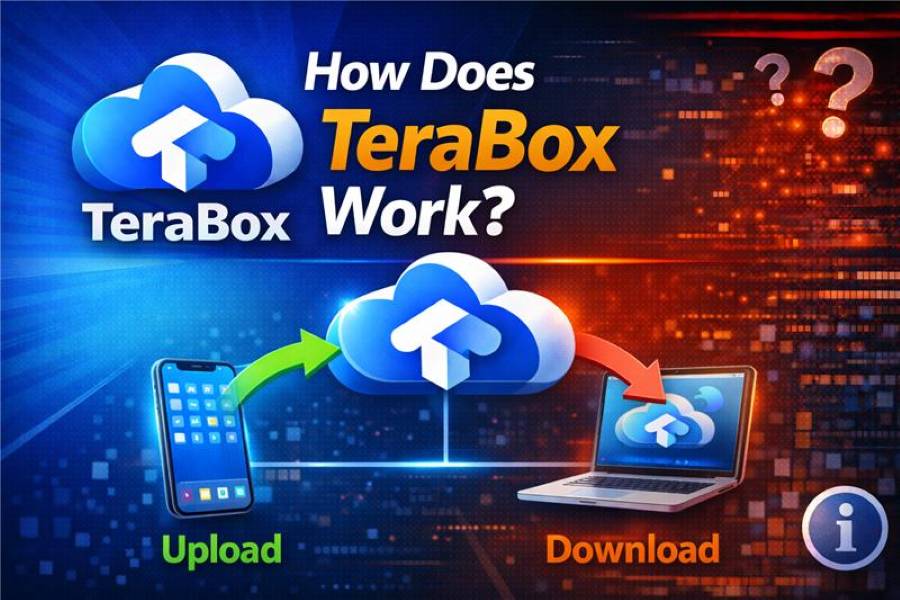
Cloud storage is useful only when it feels simple. Most people do not want a technical lesson, they want to know what buttons to press, how links behave, and what happens after they upload a file. That is exactly why the question how does terabox work appears so frequently. Users see a TeraBox link in a chat, install the app, or notice a large storage offer, then they want a clear explanation of how the system stores files and delivers them back when needed.
TeraBox works like a cloud file locker. You upload photos, videos, documents, and folders to your online account, then access them from another device using the same login. Instead of sending large attachments, you generate a share link that points to the file or folder in your cloud storage. Recipients can open the link, preview supported media, and download content depending on the link settings and file type.
The experience usually depends on three things: your internet connection, your account setup, and your organization habits. If you upload without folder structure, you can lose track of files quickly. If you share links publicly, they can spread beyond your control. If you download files from unknown sources, you can expose your device to risk. Understanding these parts helps you use the platform more confidently and avoid common mistakes.
Why TeraBox Feels Simple Once You Understand the Workflow
Most confusion comes from not seeing the full path. A file starts on your device, then moves to cloud servers, then becomes accessible through your account and share links. Once you understand that path, the platform feels predictable. People often expect the app to behave like a messaging service, but it behaves like storage, meaning it keeps files in a library until you organize and share them.
The first step is uploading. You choose a file or folder and send it to your TeraBox account through the app or web interface. Upload time depends on file size and your network. After the upload completes, the file no longer lives only on your phone or computer, it also exists in your cloud library. That means you can delete the local copy later if you want to free space, as long as you confirm the upload finished successfully.
The second step is organizing. Cloud storage becomes frustrating when everything lands in one place. A clean folder structure helps you retrieve files quickly and share the right item without scrolling endlessly. Create folders like Photos, Videos, Work, and Archive, then move files immediately after upload. If you keep this habit, your library stays usable even as it grows.
How to Use TeraBox Step by Step from Upload to Download
How do you create an account and sign in
Download the app or open the web version, then sign up using email or a supported login method. After you verify your account, you can access your cloud library. Use a strong password and keep your login private, because your account is the gateway to all stored files.
How do you upload files and folders correctly
Choose Upload, select your files, and wait for the process to complete. Upload over stable Wi-Fi if you are sending large videos, because mobile data can fail mid-transfer. After upload, confirm the file shows in your library and opens correctly before you delete local copies.
How do you organize content so it stays easy to find
Create a small set of main folders and use them consistently. Move new uploads into the correct folder right away. Use clear file names for projects, especially when you upload multiple versions of the same video.
How do you share a link for others to access
Select a file or folder, tap Share, and generate a link. Send the link to the recipient through chat or email. Keep sharing controlled, because public sharing can spread links beyond the intended audience.
When You Ask “How Does TeraBox Work,” These Features Matter Most
TeraBox works through a set of core features that shape the user experience from storage to sharing. Understanding these features helps you predict what happens when you upload or open a link.
- Cloud library storage – Files are stored online and remain accessible across devices after login.
- Folder organization – Folders keep files grouped by purpose, which reduces confusion and speeds up retrieval.
- Share link generation – Links point to the online file, letting others access it without large attachments.
- Preview and streaming support – Supported media can be previewed before download, which saves time and bandwidth.
- Direct download option – Users can download files to keep them offline or open them in local apps.
- Cross-device access – The same library appears on different devices when you use the same account login.
What to Do When Uploads, Links, or Downloads Don’t Work
Problems happen, but most have simple fixes. If an upload fails, switch to stable Wi-Fi, reduce background apps, and try again. Large files can time out on weak connections, so uploading during off-peak hours can help. If the file appears but will not open, re-upload or check whether the file format is supported for preview.
If a shared link does not work, confirm the file still exists in the owner’s cloud library. Links can break when the owner deletes the file or revokes sharing. Ask the sender to generate a new link and confirm access permissions. If you receive links from unknown sources, avoid clicking random download buttons and focus on the actual file listing area.
Download issues often come from storage limits on the device or unstable connections. Clear device space before downloading large videos and avoid switching networks mid-download. If a file downloads but will not play, try a different media player or download a different file version. Keep your apps updated, because outdated browsers and players can cause playback problems.
How to Make TeraBox Work Better for Your Daily Workflow
- How to set up folders so you never lose track of files:
Use a simple structure: Photos, Videos, Work, Shared, Archive. Add subfolders only when a folder becomes too large. Keep naming consistent so you do not create duplicates. - How to free phone storage without losing access:
Upload heavy videos and old albums, confirm they open from the cloud, then delete local copies. Keep a backup habit for important media, so you still have a second copy somewhere else. - How to share files without causing link chaos:
Share only what is needed and avoid posting links publicly. If you share a folder for a project, keep drafts and final versions separated. Revoke outdated links when the sharing purpose is finished.
Conclusion
TeraBox works through a simple loop: upload files to the cloud, organize them into folders, access them from any device, and share them using links for preview or download. Once you understand that flow, the platform becomes predictable and easier to manage. If you keep folders clean and share links carefully, you get a smooth experience for storage, transfers, and media sharing. The clearest answer to how does terabox work is that it stores your files online and delivers them through your account and share links whenever you need access.
FAQs
Does TeraBox work without the app?
You can often access cloud storage through a web login, but the full experience may be smoother inside the app. Features can vary by platform.
Can I use TeraBox to transfer files between phone and PC?
Yes. Upload from one device, sign in on the other, then download. This is one of the most common use cases.
Why do some videos not preview in the browser?
Preview depends on format and compatibility. If preview fails, download the file and play it locally using a media player.
How do I stop people from sharing my link further?
Avoid public sharing and revoke the link when finished. If the platform provides permission controls, use them to tighten access.
Is it safe to store important documents in TeraBox?
For highly sensitive documents, encrypt before uploading and secure your account with strong credentials. This reduces risk significantly.